

Kamili One Reminders keep critical deadlines, follow-ups, and recurring tasks visible across your workspaces.
Reviewing and Filtering Reminders
The Reminders surface organizes scheduled alerts into active and acknowledged states.
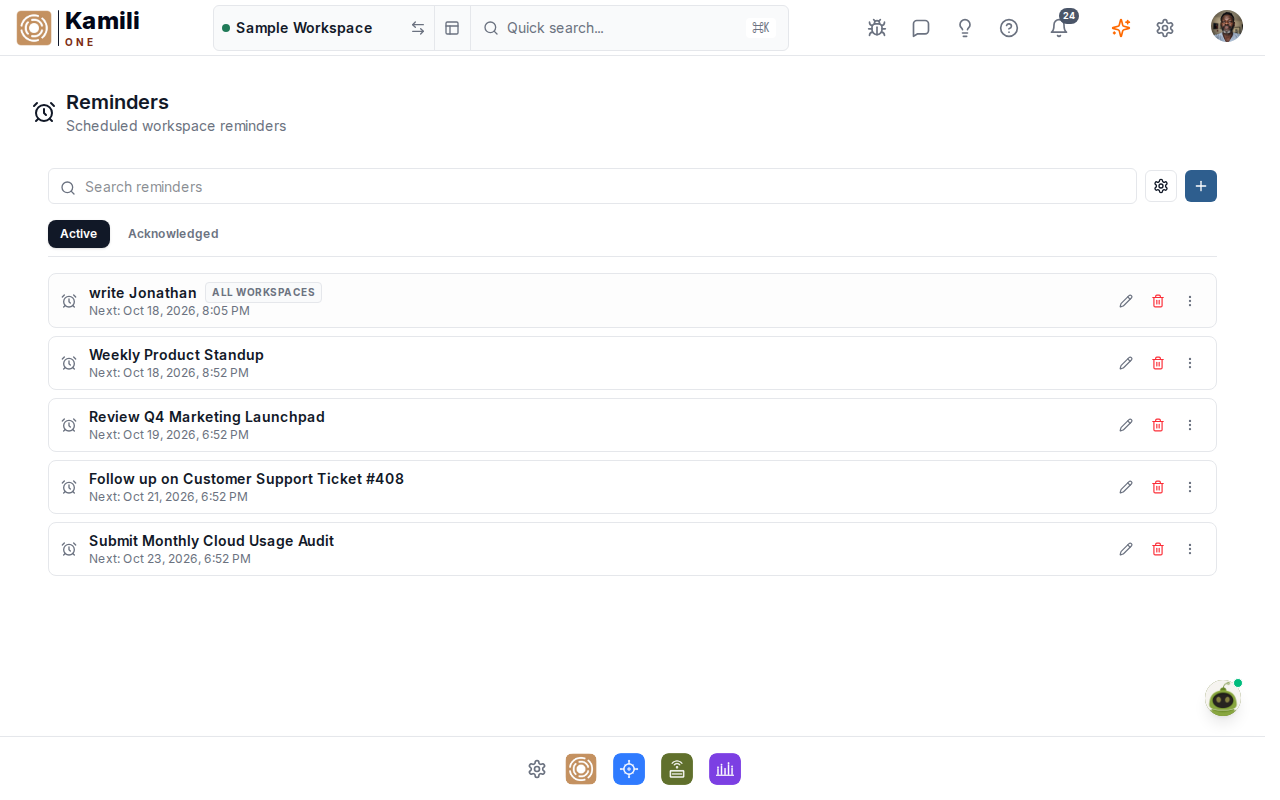
To review reminders:
- Active tab — displays all pending and upcoming reminders sorted chronologically.
- Acknowledged tab — displays past reminders that have been completed or acknowledged.
- Reminder cards — each card highlights the reminder text, scheduled date and time, recurrence frequency, and whether the reminder is visible across all workspaces.
Creating a Reminder
Create a reminder to receive timely notifications across your devices and browser sessions.
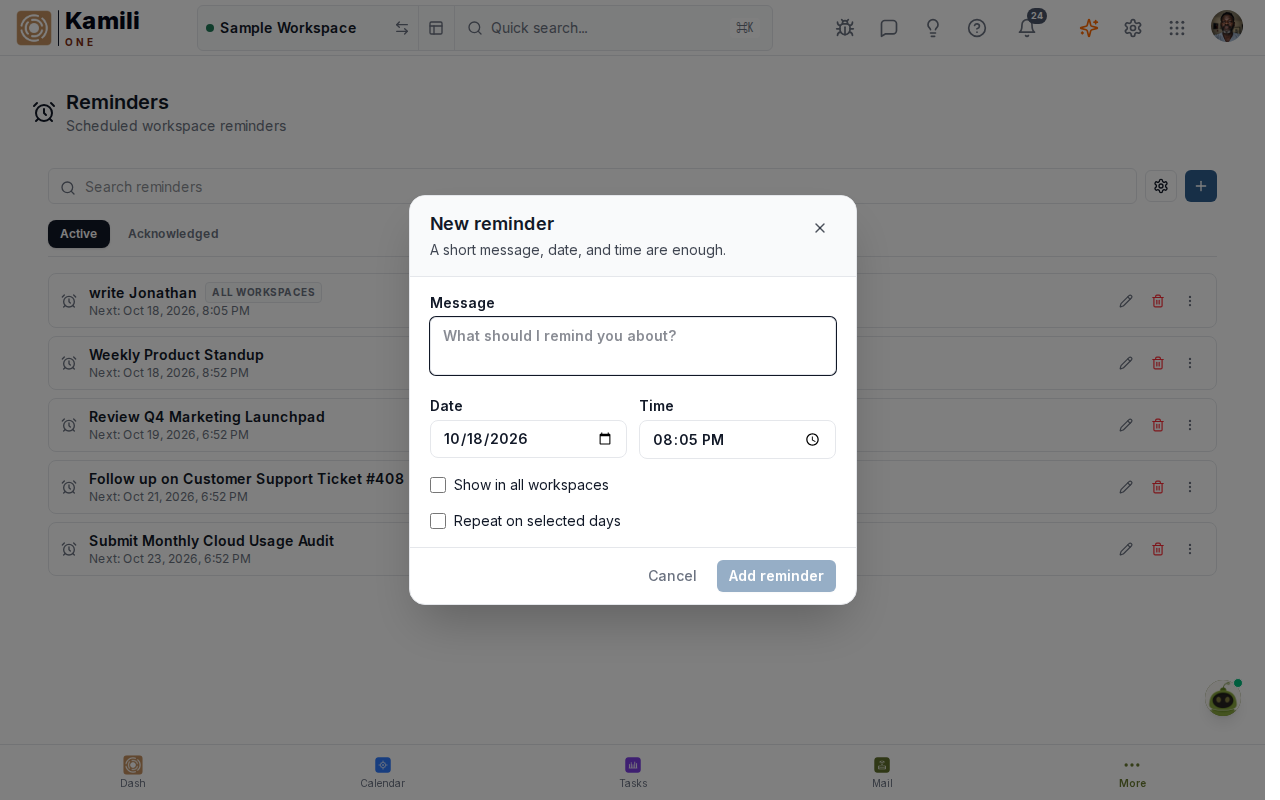
To create a reminder:
- Click the + New Reminder button in the top right corner.
- Enter the reminder message in the Message field.
- Select the target Date and Time using the date-time picker.
- Toggle Show in all workspaces if this reminder should follow you regardless of which workspace is currently active.
- In the Repeat section, click the weekday chips (e.g. Mon, Wed, Fri) to establish recurring schedules.
- Click Save Reminder to add it to your schedule.
Searching and Locating Reminders
When managing dozens of reminders, use the built-in search bar to filter entries in real time.
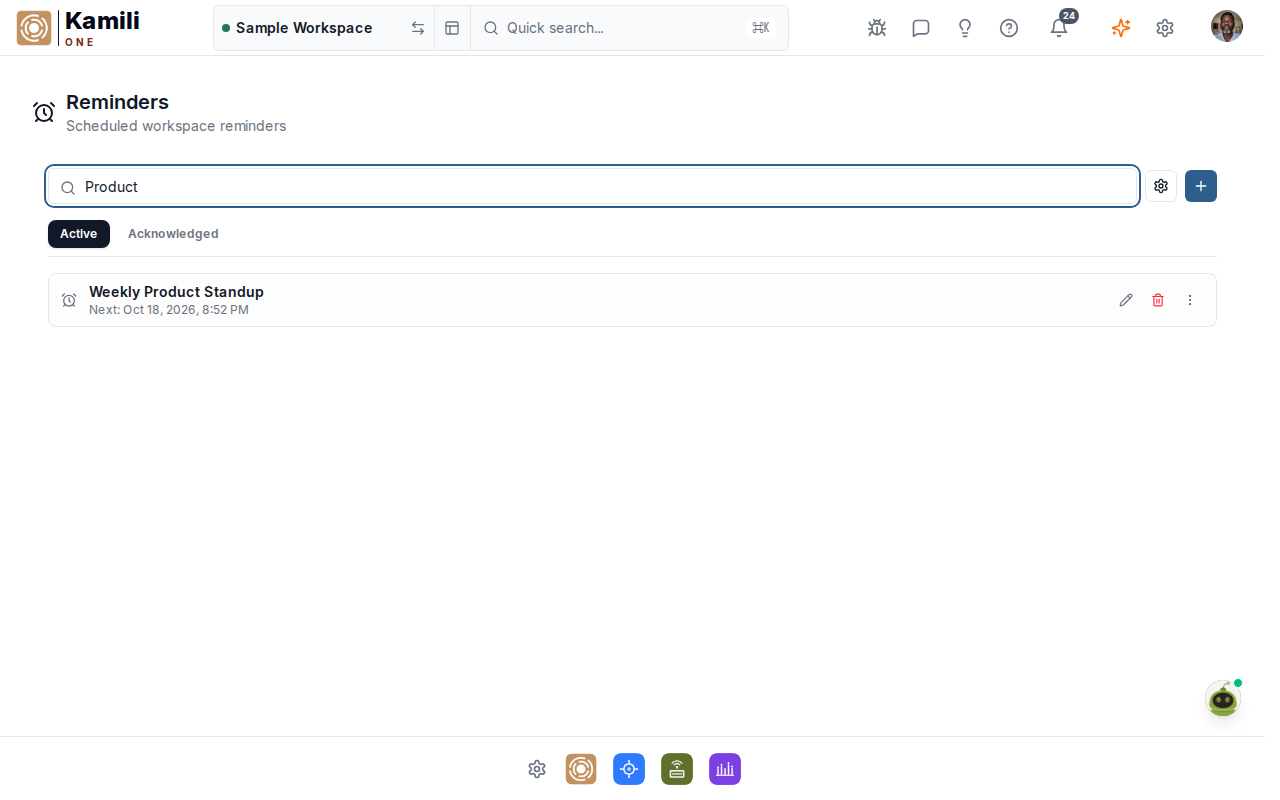
To search reminders:
- Enter keywords into the search box at the top of the Reminders list.
- The list immediately filters to match matching titles, notes, and recurrence patterns.
- Clear the search box to restore the full list of active reminders.
Snooze and Recurrence Options
When a reminder notification triggers:
- Acknowledge — marks the reminder as completed, moving it to the Acknowledged tab.
- Snooze — delays the alert by 10 minutes, 1 hour, or until the next morning.
- Recurring resets — for reminders set to repeat on specific weekdays, acknowledging today's alert automatically schedules the next occurrence.