

Kamili One Notes keeps meeting summaries and workspace documentation together. In Kamili One, choose Workspace tools in the top bar, then Notes and Open Notes fullscreen. On mobile, choose More > Notes. You can also open Notes directly.
Creating and Editing Notes
Draft and format notes with instant autosave and structured editing tools.
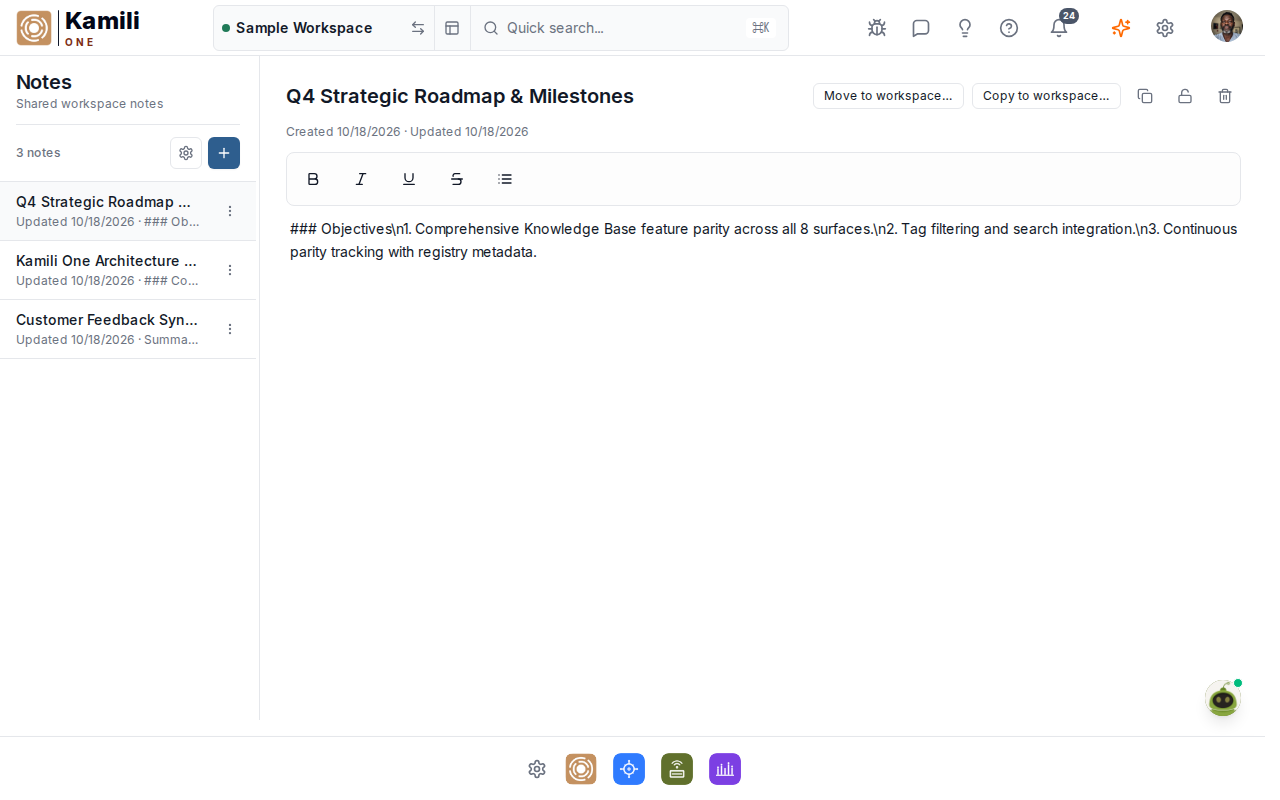
To create and format a note:
- In the full Notes view, click the plus button labeled New note beside the note list. On mobile, this button is in the Notes header.
- If prompted, choose a workspace and optionally enter a title, then click Create note.
- Select the note in the list and enter its content in the editor.
- Use the editor controls to format your note and save your changes.
Finding and Organizing Notes
- Choose the workspace in Notes, then click a note in the list to open it.
- Use a note's actions to move or copy it to another workspace when available.
- Workspace members can access notes according to their role.